SEO guide
How to Add Meta Tags, Social Previews and an XML Sitemap

Updated · 6 min read
Publishing a useful page involves more than writing its visible heading. Search engines need clear signals about the page, social apps use their own preview metadata, and a sitemap can help expose the URLs you want discovered. These pieces solve different problems and need to agree with the published content. This guide walks through a small website's metadata and sitemap setup using the site's generators. The examples use a fictional workshop and example.com. Replace every example value with your own verified details before putting generated output on a live site.
Quick reference
| Item | Purpose | Does not guarantee |
|---|---|---|
| Title and description | Describe the page and suggest search presentation | A fixed search snippet or ranking |
| Canonical URL | Indicate the preferred version of similar content | That every other URL is ignored |
| Open Graph and Twitter tags | Provide social sharing preview data | An immediate cache refresh in every app |
| XML sitemap | List discoverable page URLs | Crawling, indexing or traffic |
1. Choose the final URL and describe one clear page purpose
Decide which address represents the published page, including the correct HTTPS hostname and path. Write a title that identifies the subject clearly, then a concise description that accurately summarises what the page offers. For a fictional bicycle repair business, a service page should describe bicycle repairs rather than repeat a long list of unrelated services and locations.
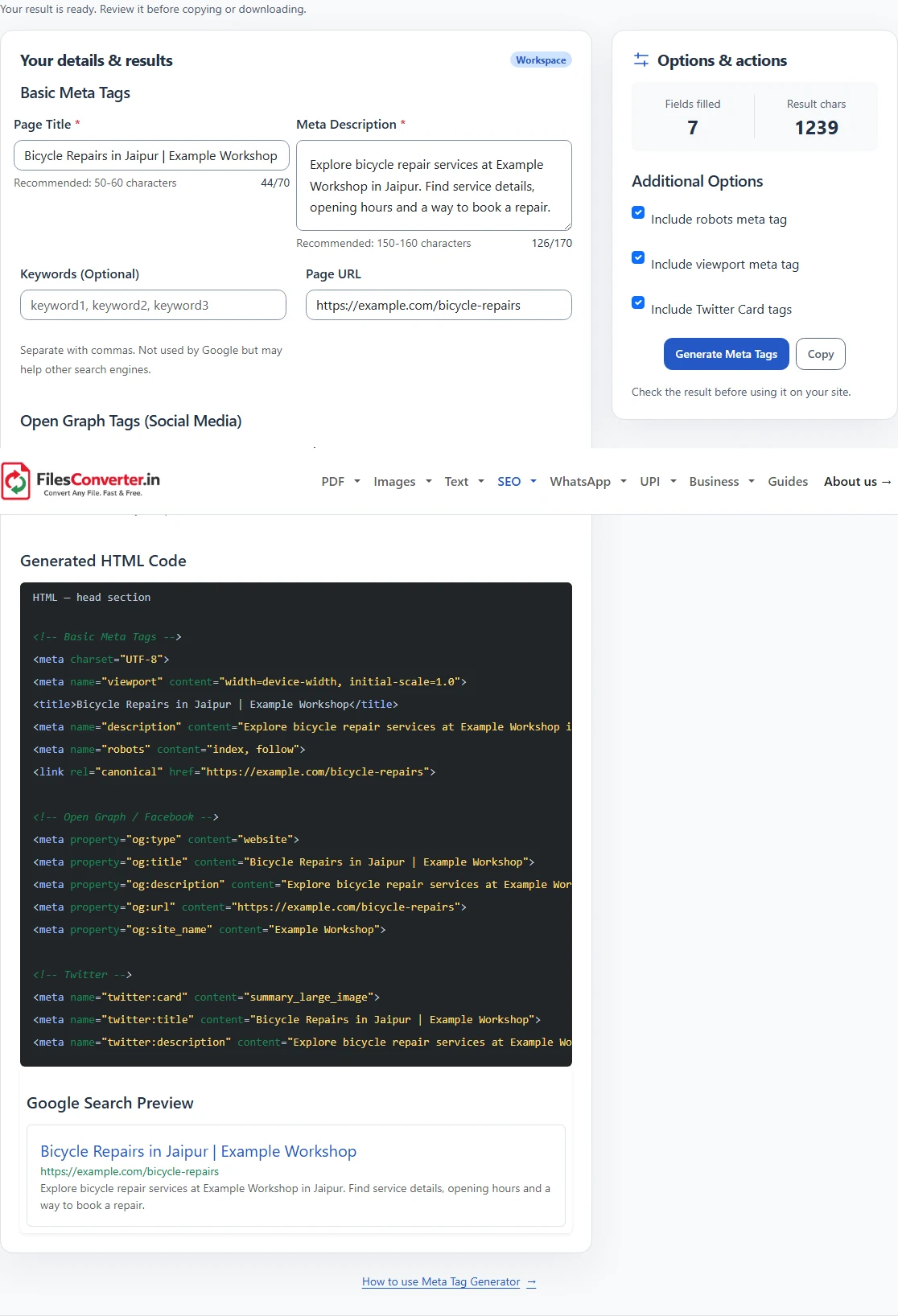
Open the Meta Tag Generator and enter Page Title, Meta Description, and Page URL. Use the final public URL, not a staging address or a local file path. Character counters help with drafting, but search displays vary by device and query, so a counter is not a promise about the displayed snippet.
2. Prepare the social preview with truthful text and an image
Add the site name and a publicly accessible image URL where relevant. The image should represent the page and remain readable when shown as a small preview. Check that its URL serves an image without requiring a login. The Open Graph Generator provides a focused workflow for social metadata when you need to prepare those tags separately.
Keep social titles and descriptions consistent with the visible page. Avoid a preview that advertises something the landing page does not provide. Different apps crop images and cache metadata differently. After an update, an older preview may persist until the platform refreshes it; repeatedly changing the local generator does not update a previously published page.
3. Place the tags in the page head and remove duplicates
Generate the markup and add the appropriate tags inside the HTML <head>, or use the equivalent fields in your content management system. Inspect the existing output before adding anything. A theme or SEO plugin may already create titles, canonical links, descriptions, and social tags. Add one consistent set rather than leaving conflicting duplicates.
The Page URL field supplies a canonical URL in the meta generator. Its robots option outputs index, follow; include that only when it matches your publishing intention. If a page should be excluded from search, configure the correct noindex handling in the actual site. The generator does not inspect your server headers, robots.txt, login controls, or existing page metadata.
4. Build a sitemap from the URLs you want indexed
Use the Sitemap Generator with a checked list of full canonical URLs. Include useful public pages that work, and exclude error pages, private screens, internal search results, and duplicate addresses that you do not want indexed. This generator works from your supplied list; it does not crawl your website to decide which pages belong.
Use modification dates only when they reflect meaningful page changes. Download the XML, publish it at a stable site URL, and check that it is publicly accessible. You can reference the sitemap in robots.txt and submit it through your search engine webmaster account. These discovery steps do not override noindex instructions or guarantee that a listed page will enter the index.
5. Verify the published output and maintain it with the content
Open the live page and inspect its source or rendered head. Confirm that the title, description, canonical URL, and image URLs contain your real values and that the expected page returns successfully. Check a representative social preview using the destination platform's available inspection tools. Fix the source template if the same wrong metadata appears across multiple pages.
When a page moves, update its internal links, canonical address, and sitemap entry as part of the same change. When its purpose changes, rewrite the metadata to match the new content. Review search console reports for discovery and indexing issues, but interpret them alongside the page itself. Helpful content and a usable site remain necessary beyond a technically valid set of tags.
Common mistakes in a first SEO setup
- Keyword lists instead of descriptions: write a useful summary for a reader. The optional meta keywords field is not a useful Google ranking shortcut.
- Staging URLs in production: check canonical links and social images after deployment, especially when copying a template.
- Confusing robots.txt with noindex: blocking crawling can prevent a crawler from seeing a page's noindex instruction. They serve different purposes.
- Assuming a sitemap approves pages: a sitemap communicates URLs; the search engine decides how to crawl and index them.
Keep a simple page inventory with its purpose and canonical address. That makes it easier to spot duplicate titles, outdated sitemap entries, and important pages with no internal links.
Frequently asked questions
Will Google always show my meta description?
No. A search engine may choose another snippet based on the page content and the query. Write an accurate, useful description, but do not treat a preview in a generator as a fixed promise about the search result.
Does a sitemap guarantee indexing?
No. It provides a list of URLs for discovery. Accessibility, indexing instructions, content, duplication, and search-engine decisions still matter. Inspect the live pages and use webmaster reports to investigate issues.
Where do generated meta tags belong?
They normally belong inside the document's head, or in the corresponding metadata settings of a site platform. Check whether a theme or plugin already generates them before adding another copy.
Why does a shared link still show an old image?
Social platforms often cache previews. First confirm that the live page contains the new accessible image URL, then use the platform's refresh or inspection option where available. A browser refresh alone may not clear the platform's cache.
References and further reading
Found a step that needs updating? Contact Alok Kumar Sharma with the guide title and a description of the issue.