PDF guide
How to Compress a PDF for a 100KB or 200KB Form Limit

Updated · 6 min read
An application form can reject a perfectly readable document because its file size is too large. Reducing it is a balancing act: the upload must fit, but names, numbers, stamps, and signatures must remain clear. This guide shows how to work toward a small PDF using the available compression controls and how to check the downloaded result. The 100KB and 200KB limits here are examples, not universal SSC, UPSC, or banking rules. Read the current notice and the instructions beside your actual upload field before changing any file.
Quick reference
| Check | What to record | Why it matters |
|---|---|---|
| Accepted format | PDF, JPG, or another specified format | Renaming an extension does not convert a file |
| Maximum size | The stated KB or MB limit | A 100KB example may not match your form |
| Required content | Pages, stamps, signatures, and sides | Compression must not remove required evidence |
| Text and signatures | Whether searchable text or a digital signature is required | Image-based compression changes these features |
1. Read the upload rules and keep an untouched original
Save the original document before opening the Compress PDF tool. Write down the maximum size, accepted format, page count, and any instructions about colour, resolution, or signatures. Requirements can change between recruitment notices and between fields in the same form. A photograph field and a certificate field may accept different formats.
Inspect the source at a comfortable zoom. If a name or stamp is already blurred, compression will not restore it. Rescan a paper document with even lighting and a flat page when possible. Avoid adding decorative covers or unnecessary blank pages, but keep every page and reverse side the application actually requests.
2. Choose a suitable starting compression level
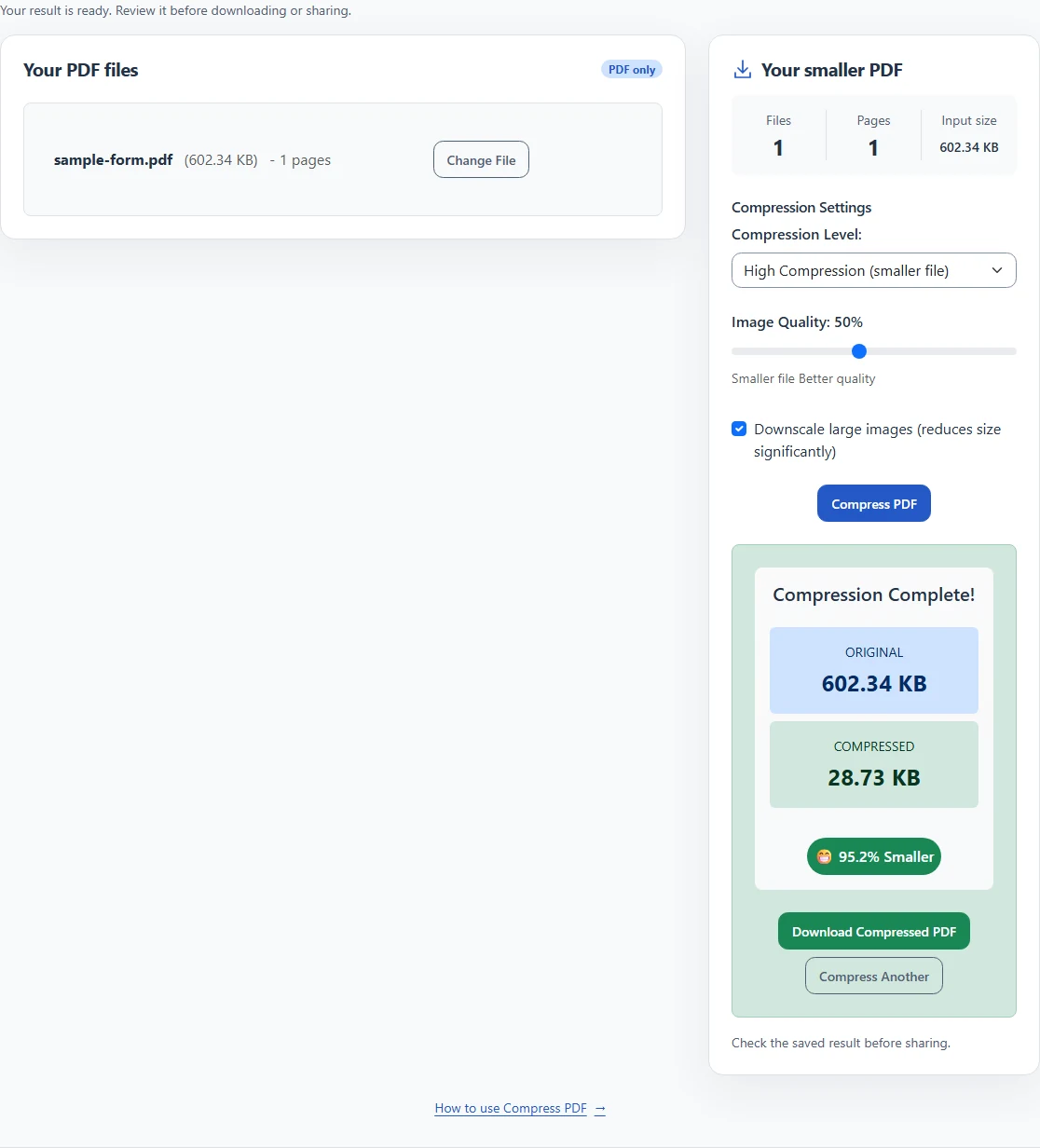
Select your PDF and begin with Medium Compression (balanced) if you need a starting point. The preset adjusts the image-quality value; lower values generally trade detail for a smaller result. The Downscale large images option can reduce page resolution as well. Start conservatively when the source contains small print, pale stamps, or narrow signature strokes.
This compressor renders PDF pages as images and places those images in a new PDF. It is useful for some scanned application documents, but it does not preserve selectable text, interactive form fields, or a digital signature's validity. If those features are required, use an appropriate original export or a workflow that preserves them instead.
3. Compress once and inspect the actual file size
Choose Compress PDF and wait for the result. Read the original and compressed sizes, then download the output. The tool offers quality controls, not a field that guarantees a particular PDF size. A multipage scan may remain too large even with strong compression; a small text-based PDF can become larger after its text is rendered into page images.
Check the downloaded file's properties as well as the on-page summary. Displayed KB values may be rounded, and different systems can use different byte conventions. Leave a modest margin below a hard limit where possible. The receiving portal's check remains the final decision about whether that file is small enough.
4. Adjust from the original and check readability
If the result is still too large, return to the original and try a stronger preset or enable downscaling. Change one setting at a time so you know what caused the difference. Repeatedly compressing an already compressed copy can accumulate blur without producing a useful saving. Keep only a few clearly named candidates while comparing them.
Open each candidate and examine names, registration numbers, dates, seals, and signature edges. Check the smallest text at ordinary reading size and at higher zoom. If important detail disappears before the size is acceptable, improve the scan or review the portal's alternatives. Splitting a required single document or deleting required pages is not a valid workaround.
5. Validate the final document in the actual form
Give the chosen copy a simple filename that identifies its purpose. Open it once more to verify the page count and order. If the upload field actually requires an image, use PDF to JPG only after confirming how it expects individual pages. Converting to an image is a format change, not an automatic solution to a PDF-only requirement.
Select the final file in the form and review any preview before submitting the application. A successful file-size check does not prove that the document is legible or that the application has been submitted. Follow the portal's remaining steps, and retain the final document with the acknowledgement for your records.
Common mistakes that make a small PDF unusable
- Chasing a number at any cost: a file below the limit still fails its purpose if the reviewer cannot read the identifying details.
- Starting from a poor scan: photographing a document in shadow often needs a better source, not another compression pass.
- Ignoring digital signatures: a visible signature image is different from a cryptographic PDF signature. Rebuilding pages does not preserve the latter.
- Uploading the wrong copy: distinguish the source and final file with clear names, then check the actual file selected by the form.
For image-only fields, the Image to Target Size tool provides a separate maximum-size workflow. Its image options and output formats differ from PDF compression, so follow the rules for that specific field.
Frequently asked questions
Can this tool guarantee a PDF below 100KB?
No. Output size depends on the number of pages, their detail, quality settings, and resolution. Some documents cannot fit a very small limit while remaining readable. Inspect the result and use the portal's guidance if acceptable quality and size cannot both be achieved.
Will compressed text remain selectable?
This tool creates image-based pages, so original selectable text is not retained as a text layer. Search, copying, accessibility, and interactive fields can be affected. Keep the original whenever those features matter.
Why did my PDF become larger?
A PDF containing efficient text and vector graphics can be smaller than images of the same pages. Rendering those pages into images may increase its size. Compare the result and retain the original if it already meets the form's requirements.
Do all SSC or UPSC forms require the same file size?
No. Read the current recruitment notice and each upload field. Limits, formats, and required documents can differ by application and year. The 100KB and 200KB figures in this guide are examples, not official requirements.
Found a step that needs updating? Contact Alok Kumar Sharma with the guide title and a description of the issue.