PDF guide
How to Merge and Organize Documents into One PDF

Updated · 6 min read
Sending several separate attachments makes it easy for a recipient to miss a page or read documents in the wrong order. One well-organized PDF can be easier to review, whether you are preparing marksheets for an application or bank statements for an accountant. Merging is only one part of that job: the source pages still need the right order, orientation, and coverage. This guide shows how to prepare the files, combine them, and check the final download without confusing a successful merge with a complete and accurate document pack.
Quick reference
| Example pack | Useful ordering rule | Final check |
|---|---|---|
| Academic records | Follow the recipient's requested qualification order | All required pages and reverse sides are included |
| Monthly statements | Chronological order unless instructed otherwise | No missing or repeated month |
| Application attachments | Use the checklist's section order | Each attachment matches its requested section |
| Scanned paper records | One consistent reading orientation | Small text and stamps remain legible |
1. Make a checklist and inspect each source file
List the documents the recipient actually needs. For a statement pack, record the covered months and the number of pages in each statement. For academic records, check whether a reverse side, grading key, or additional sheet is requested. Do not rely on the filenames alone: open every source and confirm its contents.
Keep originals in a separate folder and create working copies with useful names, such as 01-record.pdf and 02-supporting-page.pdf. If a source is protected, obtain an accessible copy through an authorised route. The Merge PDF tool expects readable PDF inputs and rejects protected files; it is not a way to bypass document access restrictions.
2. Prepare page orientation and any internal ordering
Turn sideways scans upright before merging, using Rotate PDF when appropriate. Review the result to ensure only the intended pages changed. If one source contains pages in the wrong sequence, use Reorder PDF Pages to correct that file before adding it to the pack.
The merge list controls the order of whole files. It preserves the existing page order within each file, so moving a statement above another statement does not reorder the pages inside either one. Preparing the sources first makes the final list much easier to review. Avoid unnecessary edits to signed or interactive documents, whose special features may not survive restructuring.
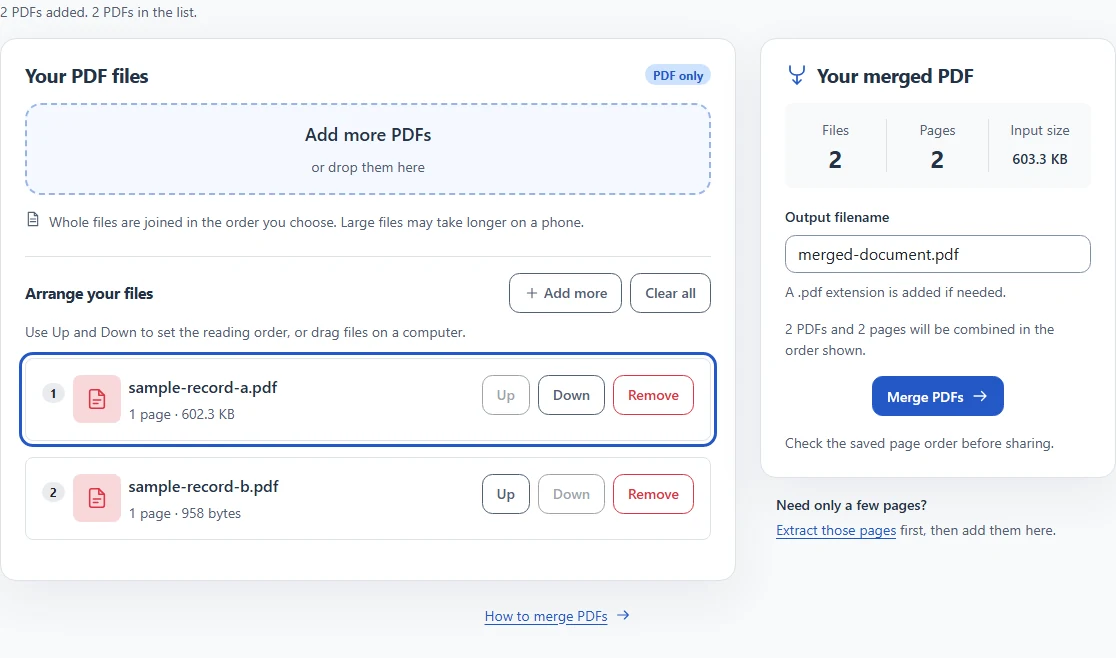
3. Add the PDFs and arrange the file list
Open Merge PDF and choose two or more files, or drop them into the upload area. Wait for the list to finish loading. Check the displayed names and page counts against your checklist. Use the list's ordering controls to arrange whole files, and use Add more if another PDF belongs in the same pack.
Inspect duplicate-looking filenames carefully. Two files called statement.pdf may cover different periods, while differently named copies may contain the same pages. Remove unintended copies from the list before proceeding. Choose a clear Output filename that identifies the pack without exposing more personal information than necessary. A filename can be visible in email, downloads, and shared folders.
4. Merge the pack and inspect every transition
Select Merge PDFs and wait for completion, then choose Download merged PDF. Open the saved document in a PDF viewer. Compare the total number of pages with your checklist, but do not stop there: the right total can still hide a duplicate that replaced a missing page.
Pay particular attention to the boundary between two source files. Confirm that each statement begins after the previous one ends, that no page is upside down, and that the contents stay in the requested order. Searchable text, links, bookmarks, form fields, and digital signatures need their own checks. Combining pages does not promise that every specialised feature of each source remains intact.
5. Add navigation only when it helps the recipient
For a long pack, the Add Page Numbers tool can provide continuous numbering. Place numbers where they do not cover existing text, stamps, barcodes, or signatures. Check the first and last pages after downloading the numbered copy. If the recipient asks for unaltered source pages, follow that instruction instead of adding extra marks.
Check the final file against any upload-size limit. Merging does not compress the combined content, and a pack may exceed a limit even when each source fits individually. If compression is allowed, review its effect on readability and document features before using it. Save the checked final version and upload or share that exact copy.
Small checks that prevent confusing document packs
- Separate source order from page order: arrange individual pages before arranging whole files in the merger.
- Watch for omitted reverse sides: a marksheet's grading explanation may be on a second page that looks less important but is required.
- Keep originals available: a recipient may ask for the individual statement or source document later.
- Avoid needless personal details: include only documents required for the task, and check the recipient before sharing financial records.
A digitally signed PDF deserves special care. A visible signature graphic can remain on a page even when the original cryptographic validation no longer applies to a rebuilt document. If validation matters, ask the recipient whether separate original signed files are required and preserve those originals.
Frequently asked questions
Does merging reduce the total file size?
Not reliably. The merger combines pages; it is not a compression setting. The final size depends on the sources and their contents. Inspect the downloaded file, and only use a separate compression process when its changes are acceptable for the recipient.
Can I reorder individual pages in the merge list?
The merge list orders complete files. Each source keeps its existing internal page sequence. Use Reorder PDF Pages on a source first when individual pages need rearranging, then add the corrected file to the merger.
Will a merged bank statement prove that it is authentic?
No. Combining documents does not verify their origin, content, or account ownership. Keep original statements and any validation information. A recipient may require direct downloads, original signed documents, or another verification process.
What should I do if a protected PDF cannot be added?
Use an accessible copy that you are authorised to process, or obtain one from the issuer. Do not remove restrictions from documents you lack permission to modify. Check whether the recipient accepts the original protected file separately.
Found a step that needs updating? Contact Alok Kumar Sharma with the guide title and a description of the issue.