Images guide
JPG, PNG or WebP: How to Choose the Right Image Format

Updated · 6 min read
Choosing an image format is easier when you start with where the image will be used. A photograph on a website, a transparent shop logo, and a screenshot containing small text do not need the same settings. The smallest file is not always the most useful one, and a familiar extension does not guarantee that an upload form accepts it. This guide compares JPG, PNG, and WebP, explains what conversion can change, and shows how to judge a saved result using the actual image converter controls.
Quick reference
| Format | Useful starting cases | Watch for |
|---|---|---|
| JPG | Photographs and widely supported image uploads | Lossy detail and no transparency |
| PNG | Transparent graphics, diagrams and crisp screenshots | Large files for detailed photographs |
| WebP | Website images when the destination supports it | Upload and editing-app compatibility |
| Original source | Editing, archiving or preserving special features | Conversion may flatten animation or omit metadata |
1. Check what the receiving website or app accepts
Look for an accepted-format list before opening the Image Converter. A modern browser may display WebP while a government form or older office application accepts only JPG and PNG. Follow the destination's requirements, including dimensions and file-size limits, instead of choosing an extension solely because it is newer.
Keep the original image. It may contain editable information, animation, colour information, or metadata that a simple export does not retain. If someone needs the original camera file or an editable design, a flattened conversion is a different deliverable. Renaming the extension in a file manager does not change the encoded format and can make the file harder to open.
2. Choose a format based on the visible content
For a photograph, JPG is a useful compatibility-first starting point. Its lossy compression can save space, but low quality settings may produce blocks, ringing around edges, or smeared fine detail. PNG is often a better starting point for diagrams, interface screenshots, or graphics with transparent areas. It preserves the pixels presented for encoding, though it cannot recover information already lost from the source.
WebP can be useful for web delivery and supports transparency. Actual savings depend on the image and settings; do not assume every WebP will be smaller than every JPG. For website use, compare representative images and check your publishing system's handling of uploads, resizing, thumbnails, and final delivery.
3. Set the converter options and understand their scope
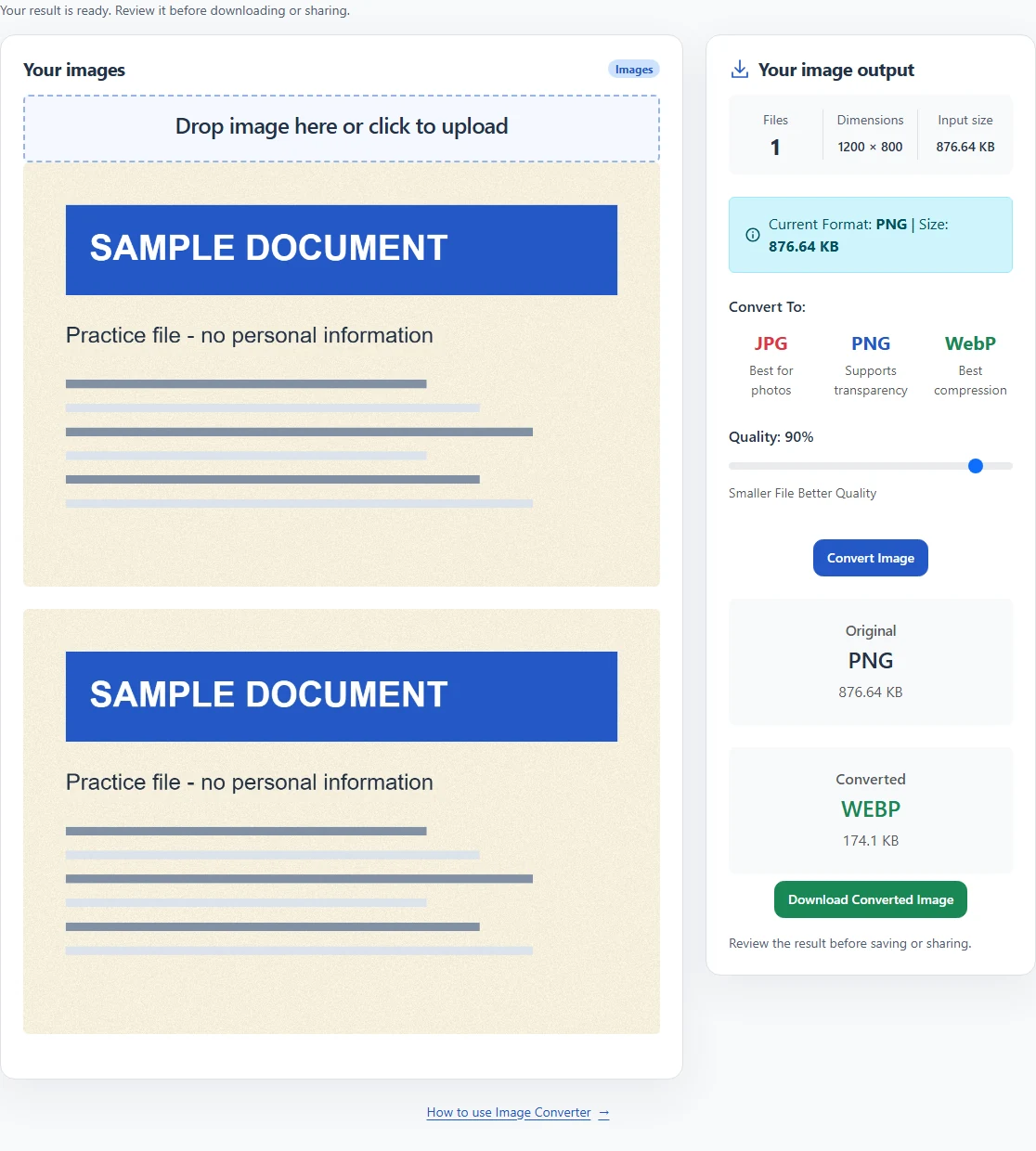
Select the source in Image Converter, choose JPG, PNG, or WebP, and use the quality control when the selected format supports it. This converter uses browser canvas encoding. The JPG and WebP quality range changes the encoder's quality request; the same numerical setting does not represent identical visual quality or bytes across formats or browsers.
Conversion here keeps the source pixel dimensions. If the picture is much larger than its intended display size, use Image Resizer first. Reducing dimensions and choosing an efficient format are separate decisions. Check the resized image before conversion so you can identify whether an unwanted change came from scaling or compression.
4. Compare the saved result at the size people will see
Select Convert Image, download the output, and open it. Compare file sizes, but also inspect faces, fine lines, gradients, and small lettering. A large preview can hide how a thumbnail will look; a heavily magnified preview can exaggerate defects that are invisible at normal display size. Check both the intended viewing size and a closer view of important details.
For a transparent logo, place the result over the actual page background. JPG cannot store transparency, and this converter fills transparent areas with white for JPG output. PNG or WebP can retain transparent pixels. Watch for pale outlines around cutout edges, which may become visible only against a dark background.
5. Test the final file in its destination
Upload a checked copy to the intended form, website, or publishing tool. Confirm that it opens, keeps the expected dimensions and transparency, and survives any automatic processing. A content management system may recompress a file or make new thumbnails. Judge the image users actually receive, not only the local export.
Use Image Compressor for a separate compression workflow when appropriate. Save useful variants with descriptive filenames so an original and a small web image do not get confused. Keep the original for future edits and generate later versions from it. Repeatedly opening and resaving a lossy image can compound damage, especially around text and sharp boundaries.
Avoid format changes that solve the wrong problem
- Do not expect PNG to repair a JPG: changing format can avoid further lossy encoding, but it cannot reconstruct discarded detail.
- Check animation: a canvas-based conversion can produce a still image rather than preserve an animated sequence.
- Separate dimensions from compression: a huge image may need resizing even after an efficient format is chosen.
- Check metadata requirements: browser re-encoding may omit camera or other metadata. Keep the source if that information matters.
For an official document upload, accepted format and readability take priority over website optimisation. For a website, use a representative set of photographs and graphics when comparing settings; one unusually simple image is not a reliable guide for an entire image library.
Frequently asked questions
Is WebP always the smallest choice?
No. Size depends on the content, dimensions, encoder, and quality setting. Compare actual outputs at acceptable visual quality. Also check whether the receiving form or application accepts the format before choosing it.
Which format should I choose for a transparent logo?
PNG and WebP can preserve transparency; JPG cannot. Use a format the destination supports and inspect the edges over the final background. This converter fills transparent pixels with white when exporting JPG.
Will converting JPG to PNG improve image quality?
It will not restore detail already removed by JPG compression. PNG can preserve the decoded pixels without adding another lossy compression step, but the original source still determines the available detail.
Why does an image look different after uploading it?
The receiving service may resize, crop, recompress, or otherwise process the upload. Check its settings and compare the delivered image with your saved export. Colour handling and the display background can also affect the appearance.
References and further reading
Found a step that needs updating? Contact Alok Kumar Sharma with the guide title and a description of the issue.