Privacy guide
How to Check an Online File Converter's Privacy

Updated · 6 min read
A file picker on a website does not tell you where the file will be processed. Some tools read it inside the browser; others upload it to a server, and both can look similar on screen. Understanding the difference helps you decide whether a workflow suits a document's sensitivity. This guide explains the current FilesConverter.in implementation, including the AI Background Remover, and offers a practical checklist for other services. It also separates selected-file handling from ordinary network requests, downloads, browser storage, and the external apps a tool may open.
Quick reference
| Activity | What may move or remain | What to check |
|---|---|---|
| Opening a page | Page and asset requests to web hosts | Host, library and advertising disclosures |
| Browser file processing | Selected data held in the page's memory | Whether the tool also sends file data elsewhere |
| Server processing | File contents uploaded to a remote system | Retention, access and deletion policies |
| Saving or sharing | Downloads, email drafts or external app data | Device storage and the destination's practices |
1. Match the service's claims to the actual task
Read the tool's description and privacy policy before selecting a sensitive file. Look for a specific statement about the input you choose, not only general words such as secure or private. Ask whether the tool uploads the file, extracts text to send elsewhere, uses an external API, or processes it locally. Different tools on one website can use different architectures.
The current FilesConverter.in tools process selected file and text inputs in the browser, as described in the privacy policy. That is a statement about this implementation, not a guarantee about every online converter or every future version. For work documents, follow your organisation's approved handling rules as well as the service's own disclosures.
2. Understand what the AI Background Remover downloads
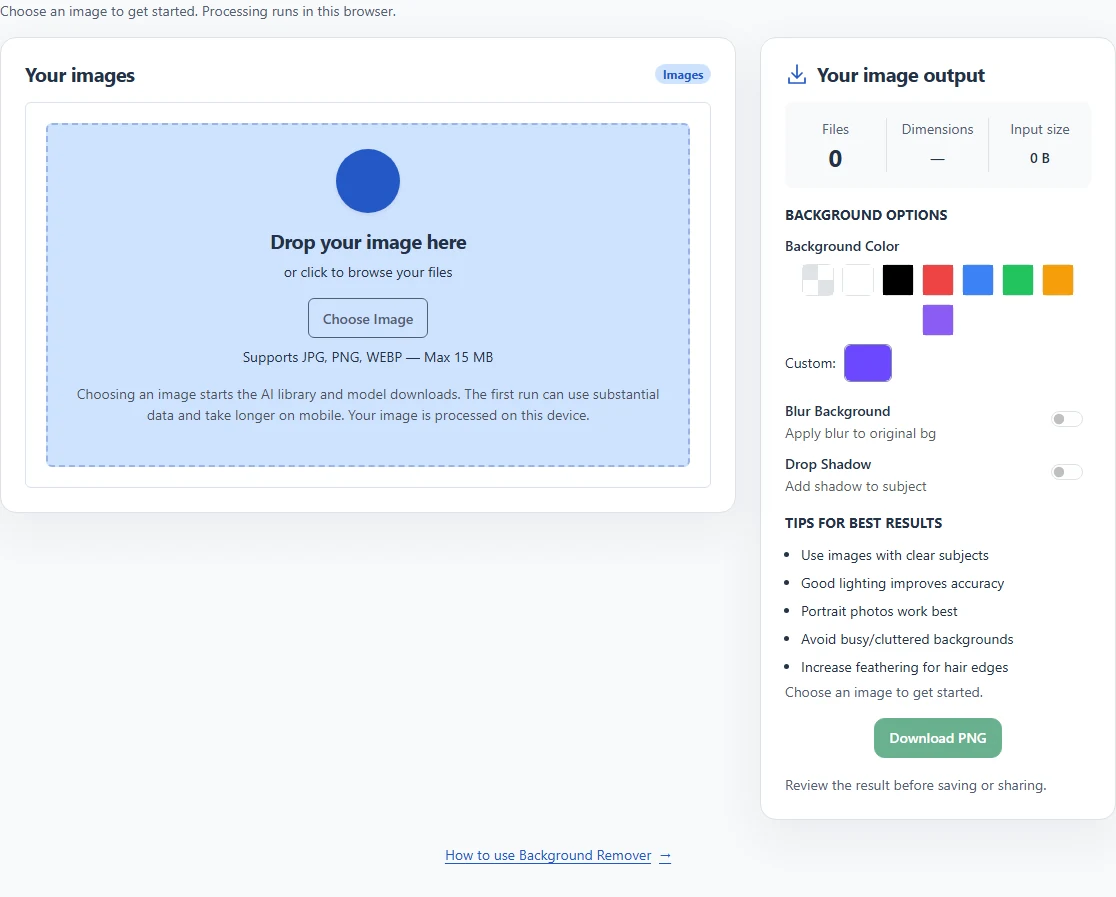
The Background Remover runs its model on the device through Transformers.js and an ONNX browser runtime. After an image is chosen, the page fetches library and runtime assets from jsDelivr and model files for briaai/RMBG-1.4 from Hugging Face. The selected image is processed locally; it is not uploaded to those hosts for background removal.
Those downloads still make ordinary network requests. An asset host can receive request information such as an IP address and browser details. A first run needs a connection and enough memory, and browser caching may affect later runs. Local inference therefore does not mean the page produces no traffic or that it is guaranteed to work offline.
3. Try a harmless sample and observe the workflow
Before using a private document, try a made-up sample containing no personal data. Check when the tool loads, whether it shows a model download, and what happens when it produces a result. A privacy statement should fit the visible workflow, but a familiar interface or a browser-generated download alone is not proof that nothing was uploaded earlier.
For a more technical check, browser developer tools can show network requests while you run the sample. Inspect destinations, methods, and request data where appropriate. GET requests for libraries and model files differ from uploads, but a quick inspection is not a complete audit of all code or future behaviour. Do not expose a real confidential document just to test your interpretation.
4. Account for metadata, browser memory and saved files
A locally processed file can still contain information you did not intend to share. Use Image Metadata Viewer to inspect supported metadata and consider Remove Image Metadata when appropriate. Metadata removal is not visual redaction: names, account numbers, faces, or addresses printed in the image remain visible.
While a page is open, its input and results may remain in memory. A downloaded file remains on your device until you remove it, and copies may enter a synced downloads folder or backup. Closing the tab does not erase saved files, browser history, clipboard contents, or a draft opened in another app. On a shared computer, handle each of those separately.
5. Check the destination when you copy, download or share
Generating a UPI request, a WhatsApp link, or an email draft is different from completing an action in the destination service. Opening those links hands the next stage to another app or website with its own data practices. Review the address, recipient, and included text before continuing. Keep private information out of URL parameters and QR notes that other people can read.
The contact form prepares an email draft; it does not submit a message to a site database. You decide whether to send it through your email provider. For an issue report, describe the tool and settings or use a fictional sample. Passwords, payment PINs, access codes, and private records are not needed to explain an ordinary tool problem.
Claims that deserve a more precise reading
- Browser processing is not anonymity: the site host still serves a page and may keep ordinary request records.
- HTTPS is not a retention policy: it protects data in transit but does not describe what a receiving server stores.
- A clear file is not necessarily metadata-free: visible content and embedded information need separate checks.
- Closing a tab is not deleting every copy: downloads, backups, clipboard data, and external drafts may remain.
This release does not include an active advertising script or Google Analytics tag. The privacy policy explains prospective third-party advertising cookies and related choices. Recheck the published policy when services change, rather than relying indefinitely on a screenshot or an old claim about how a site operated.
Frequently asked questions
Does choosing a file automatically upload it?
No. A web page can read a selected file locally or send it to a server, depending on its code. The current FilesConverter.in tools use browser processing for selected inputs. Check the particular service and feature rather than inferring behaviour from the file picker.
Why does Background Remover need the internet?
It fetches the AI model, library and runtime assets needed for local processing. These asset requests are different from uploading the selected image. Download size, caching, device memory, and connection quality can affect startup.
Are browser tools always suitable for confidential work?
Not automatically. Suitability also depends on the code, device, extensions, workplace policy and what happens to the results. Use approved tools for restricted documents and test uncertain workflows with harmless samples.
Does removing image metadata hide information printed in the picture?
No. Metadata and visible pixels are different. A name or number shown on a document remains visible after metadata removal. Use an appropriate redaction process when visible information must be removed, and verify the final copy.
References and further reading
Found a step that needs updating? Contact Alok Kumar Sharma with the guide title and a description of the issue.