WhatsApp guide
How to Create WhatsApp Click-to-Chat Links with a Draft Message

Updated · 6 min read
A WhatsApp click-to-chat link gives customers a direct route from a website, product listing, or printed sign to a conversation. A useful link opens the correct number and offers a short message the customer can understand and edit. It does not send that message automatically. FilesConverter.in's message link tool is designed for ten-digit Indian mobile numbers and adds the country code for you. This guide covers the number format, message wording, testing, and a few practical limits that matter when you publish a link for other people.
Quick reference
| Purpose | Useful draft | Check before publishing |
|---|---|---|
| Product enquiry | Ask about a named product | Product description is current |
| Booking request | Ask for available dates | No booking is implied as confirmed |
| Order support | Ask for help with an order | Private order details are not public |
| General contact | A brief greeting or no draft | The receiving number is correct |
1. Choose the number that should receive enquiries
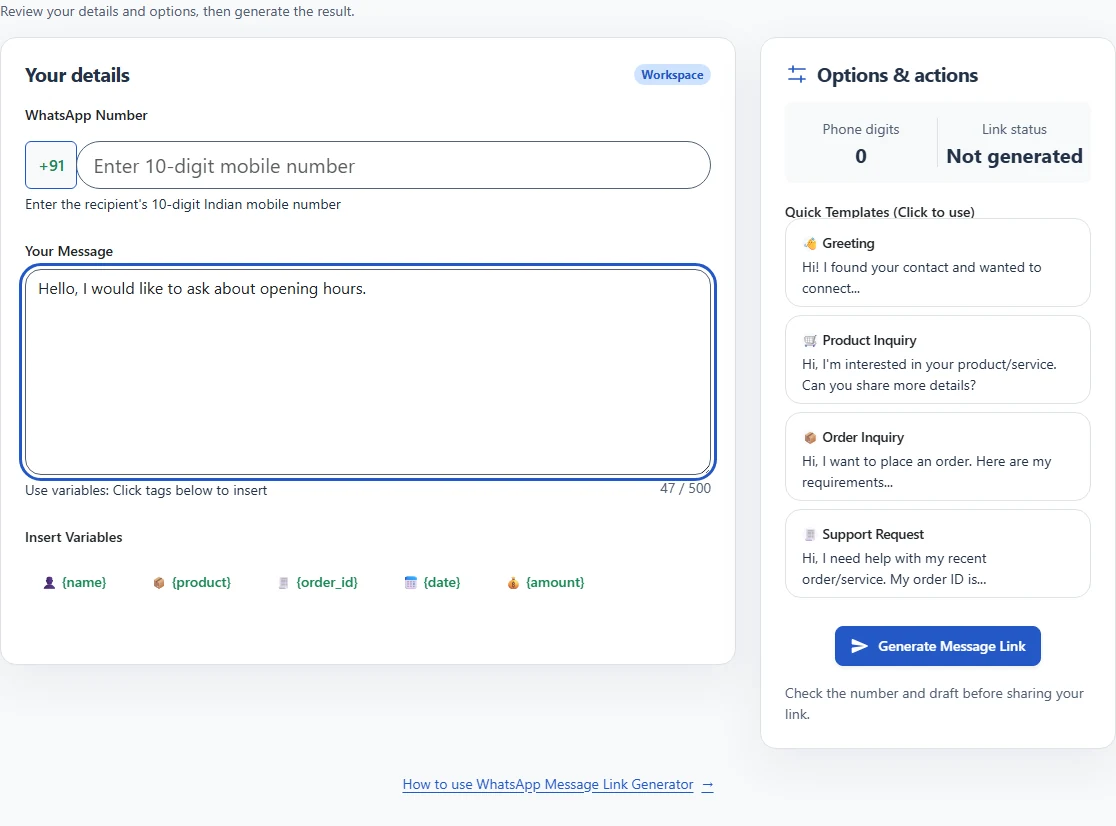
Use a number you control or have permission to publish, and confirm that the intended WhatsApp account is available on it. Open the WhatsApp Message Link Generator. The WhatsApp Number field has a fixed +91 prefix, so enter only the ten-digit Indian mobile number.
Do not paste the country code into that field. It strips non-digit characters and limits entry to ten digits, so pasting a full international number can leave the wrong digits behind. Read the entire field after pasting. The current validator expects ten digits beginning with 6, 7, 8, or 9. That check does not prove that the number has an active WhatsApp account.
2. Write the message from the customer's point of view
In Your Message, enter something the visitor might reasonably send: 'Hello, I would like to ask about the blue ceramic mug. Is it available for collection?' Keep it brief enough that a customer can review it before sending. Include the product or service context that will help you respond.
The Greeting, Product Inquiry, Order Inquiry, and Support Request templates provide starting text. Read the entire draft after selecting one. Tags such as {name}, {product}, and {order_id} insert literal text; they do not retrieve customer records or substitute values automatically. Replace them yourself, or make it clear that the customer should edit them. The counter offers a useful prompt to keep messages concise.
3. Generate the link and inspect the result
Select Generate Message Link. This tool requires both a number and a non-empty message. Its result starts with https://wa.me/91, followed by the number, with the draft carried in a text parameter. Spaces, line breaks, and punctuation are encoded so that they can travel inside a URL.
Encoded text can look longer and less readable than the original message. That is expected; do not remove percent signs or manually replace individual pieces of the URL. Check the visible phone digits, then inspect the actual draft through the test link. If you edit the phone number or message afterward, generate again before copying, because an earlier generated result may still contain your previous details.
4. Test the destination on the devices customers use
Open the generated test link on a phone with WhatsApp available. Confirm the intended conversation opens and review the draft, especially line breaks, punctuation, and any template placeholders. You can inspect the draft without sending it. The visitor decides whether to edit it or press Send; link generation does not deliver a message to the business.
Also check a desktop browser if you will use the link on a website. The visitor may be directed to WhatsApp Web, a desktop app, or a sign-in step depending on their device and setup. A different opening route is not automatically an error. If the destination is wrong, correct the number and generate a fresh result before continuing.
5. Copy, publish, and maintain the link
Use Copy Link and paste the result into the destination field of a website button, profile, or approved listing. Label it with an action such as 'Ask about availability on WhatsApp' so visitors know what will happen. The Share control uses the device's sharing options where supported and otherwise attempts to copy the link.
For a poster, create a code with the WhatsApp QR Code Generator, using the same checked number and draft. Test the downloaded or printed code separately. Keep a list of places where you publish the link. When your number, product, or message changes, replace those copies; previously shared links retain their original text and destination.
Keep the draft useful and the link dependable
Public links expose the phone number and message they contain. Do not put passwords, payment credentials, customer addresses, or private case details in a draft published for everyone. Ask for the minimum context needed to begin the conversation, then collect any necessary information through an appropriate process.
- Use a general enquiry sentence when many products share one button.
- Use product-specific wording only where you can keep the matching listing updated.
- Avoid wording that says an order or appointment is confirmed before your team has accepted it.
- If copying appears to fail, select the displayed URL and copy it manually, then test the pasted version.
For a link without a prepared message, use the separate WhatsApp Link Generator. A chat link does not add automated replies, manage a customer database, or guarantee a response.
Frequently asked questions
Can I use a number outside India in this tool?
The current message tool fixes the country code at +91 and validates ten-digit Indian mobile numbers. It is not a general international number generator. Do not replace the leading digits of a foreign number to make it pass the form.
Will clicking the link automatically send my draft?
No. The link opens a conversation with prepared text where supported. The person opening it can read, edit, or discard the draft and must choose to send it. Generating or copying the URL sends no WhatsApp message.
Why does the message contain braces around a name or order ID?
The variable buttons insert placeholders such as {name} as ordinary text. They are not connected to a contact list or order system. Replace those placeholders before generating, or explain clearly that the customer needs to fill them in.
Why can a correctly formatted link still fail to open a chat?
The number may be wrong or unavailable on WhatsApp, or the device may need the app or a signed-in web session. Check the number with its owner, try the generated URL directly, and review any message shown by WhatsApp.
Found a step that needs updating? Contact Alok Kumar Sharma with the guide title and a description of the issue.