Business guide
GST Inclusive vs Exclusive: Calculate Tax and Check Your Invoice

Updated · 6 min read
A price of Rs 1,180 can mean two different things: the final amount with GST included, or a base amount to which GST still needs to be added. Choosing the wrong interpretation changes both the tax and the customer total. Before calculating, establish what the quoted amount represents and confirm the rate that applies to the particular supply. This guide explains the arithmetic and the FilesConverter.in controls, then shows how to check an invoice. The sample rate is illustrative and does not identify the legal rate for any product or service.
Quick reference
| Starting point | Calculator mode | Base | GST | Total |
|---|---|---|---|---|
| Rs 1,000 before tax | Add GST | Rs 1,000 | Rs 180 | Rs 1,180 |
| Rs 1,180 including tax | Remove GST | Rs 1,000 | Rs 180 | Rs 1,180 |
| Rs 1,180 before tax | Add GST | Rs 1,180 | Rs 212.40 | Rs 1,392.40 |
1. Identify the price basis and confirm the applicable rate
Read the quotation, purchase order, or pricing agreement. 'Plus GST' normally describes an exclusive amount, while 'including GST' describes a total that already contains tax. If the wording is unclear, resolve that ambiguity before preparing the bill. Do not infer the basis from a round price or from how a previous supplier presented an invoice.
Confirm the relevant classification, current tax treatment, and applicable rate using authoritative information for the transaction. The GST Calculator offers preset buttons and a custom rate, but those controls are arithmetic inputs. A visible preset does not establish that the rate currently applies to your goods or services. The calculator also does not determine registration obligations or eligibility to charge GST.
2. Use Add GST when your starting amount excludes tax
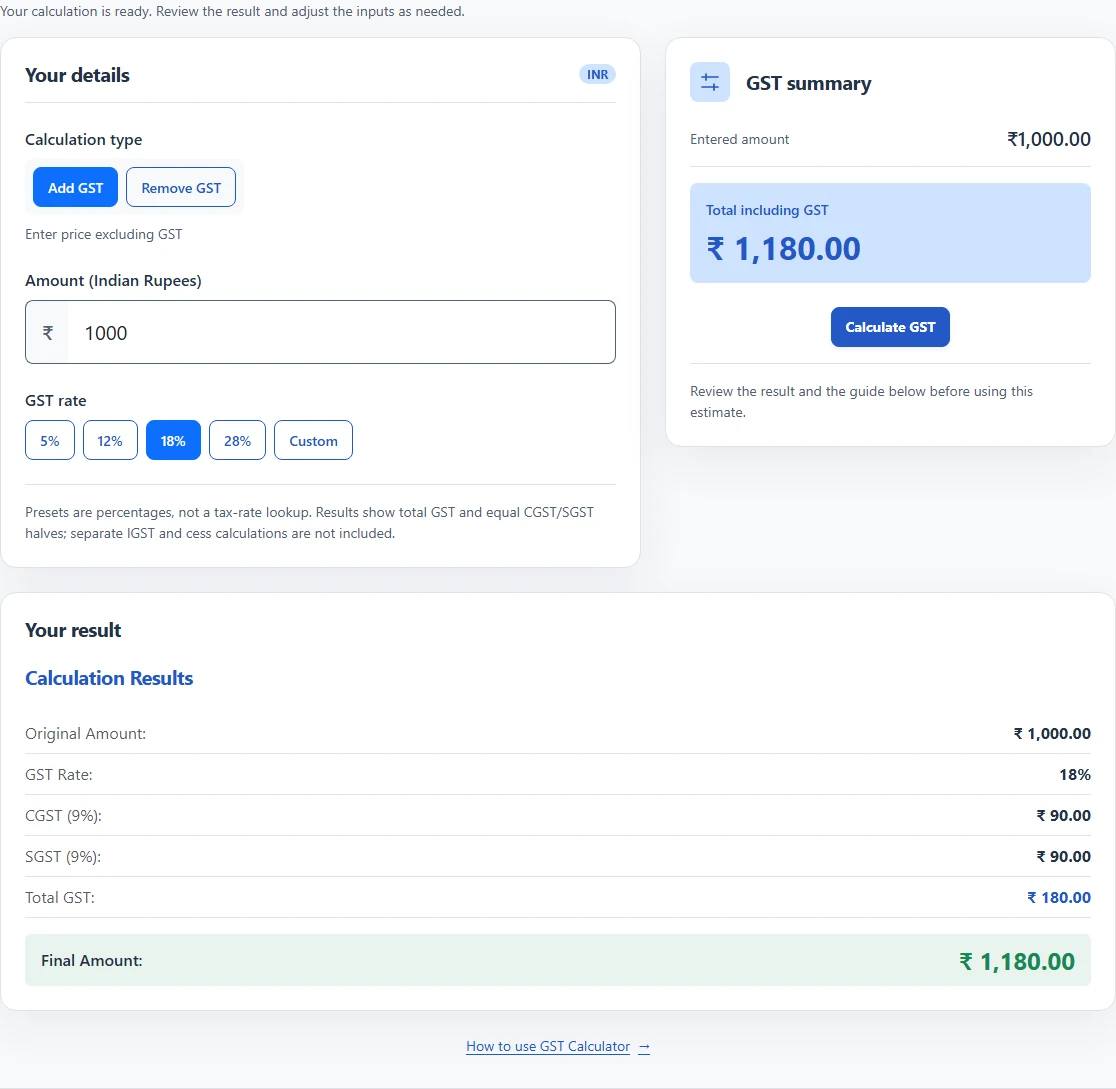
Select Add GST and enter the confirmed taxable amount in Amount (Indian Rupees). Choose the applicable rate or select Custom and enter it. Press Calculate GST, then read the original amount, GST amount, and final amount together. The custom input accepts a nonnegative percentage up to 100; this is an input range, not a statement about lawful tax rates.
The formula is GST = base amount × rate / 100. Using an example rate of 18%, a Rs 1,000 base produces Rs 180 tax and a Rs 1,180 total. Confirm that your starting figure represents the correct taxable value after accounting for relevant pricing adjustments. The calculator cannot determine the tax treatment of discounts or additional charges.
3. Use Remove GST when the quoted total already includes tax
Select Remove GST when the entered amount is the final tax-inclusive price. Keep the same confirmed rate. The calculation is base = inclusive total / (1 + rate / 100), followed by GST = inclusive total - base. At the example rate of 18%, dividing Rs 1,180 by 1.18 gives a base of Rs 1,000 and tax of Rs 180.
Do not subtract 18% of Rs 1,180 to recover the base. That would remove Rs 212.40, because it applies the rate to the total instead of the original taxable amount. Another useful check is to take the recovered base and run Add GST at the same rate. It should return the original inclusive total, allowing for displayed rounding.
4. Interpret the component display before copying it to an invoice
The calculator displays GST as equal CGST and SGST shares. At the illustrative 18% rate, its Rs 180 tax result appears as two Rs 90 components. This split is a calculation display; the tool does not ask for the facts needed to determine the appropriate tax type for your supply.
Depending on the transaction, the correct invoice treatment may involve IGST or another applicable treatment instead. Establish that from the relevant supply rules and your records before copying component labels into a bill. An address alone is not a complete tax determination. Also calculate items with different applicable rates separately, rather than applying one selected rate to a combined amount that mixes several tax treatments.
5. Build the invoice and reconcile the final total
Use the Invoice Generator to prepare a document after confirming the values. Enter accurate business and customer details, invoice identification, dates, item descriptions, quantities, rates, and applicable tax information. Review the preview as a customer would read it: the basis of each price and the final amount payable should be clear.
Compare the invoice's taxable subtotal, tax components, and total with your calculation. Make sure an inclusive price has not accidentally had GST added a second time. The generator does not validate every legal requirement or register an e-invoice with an official portal. Where your business has additional invoicing or reporting requirements, complete that process separately and retain the appropriate records.
Resolve rounding differences methodically
A one-paise difference can arise when amounts are rounded at different stages. Calculating tax on each unit, each line, or a combined subtotal may produce slightly different displayed results. Keep the calculation method consistent with your accounting process and retain enough precision until the stage where rounding is required.
- Compare quantities and unit prices before assuming the tax formula is wrong.
- Check whether a quoted amount is per unit, per line, or for the whole invoice.
- Separate items with different rates before comparing totals.
- Review how discounts, shipping, and other charges enter the taxable value.
- Use Percentage Calculator for an independent arithmetic check of a confirmed base.
If the figures still disagree, identify the exact line and calculation basis with your accountant. Changing a tax rate merely to make a total match hides the underlying issue.
Frequently asked questions
Does Remove GST mean I receive a tax refund?
No. It mathematically separates an inclusive price into a base amount and a tax amount at the rate entered. It does not submit a claim, change an invoice, establish input tax credit eligibility, or determine whether a refund is available.
Can I use the example 18% rate for my invoice?
Only if that rate actually applies to your transaction under the relevant current rules. It is used here to demonstrate the formula. Confirm the classification and treatment of your goods or services independently; the guide and calculator do not select the legal rate.
Can one calculation cover an invoice with several GST rates?
Not accurately by applying one rate to the entire mixed subtotal. Calculate the appropriate groups or lines separately, using their confirmed taxable values and rates, and reconcile their totals. Keep any exempt or differently treated amounts identifiable in your records.
Why does the calculator show CGST and SGST for every calculation?
Its current interface divides the computed tax into equal halves for those labels. It does not determine place of supply or choose the legal tax type. Confirm the transaction's required treatment before transferring those component labels to an invoice.
References and further reading
Found a step that needs updating? Contact Alok Kumar Sharma with the guide title and a description of the issue.